This Page Offers Resources to Help Develop a Contingency Plan for Educational Continuity Through This Difficult Time.
Aligning outcomes to an assignment from a Rubric
On the assignment, if you add the rubric to which you previously aligned standards, those standards also appear in this tab as being aligned with this activity.
- Click Course Admin, and then click Assignments.
- Click Edit Assignment from the context menu of the assignment where you want to attach a rubric.
- In the Properties tab, click Add Rubric.
- Select the check box for the rubric you want to attach to the assignment.
- Click Add Selected.
- Click Save.
You can view the outcomes aligned from the rubric in the Standards tab of the rubric.
The Standards tab display is updated to show the standards which are aligned to the rubric and associated with this activity using the rubric in comparison to those which are directly aligned to the assignment. Notice that an X appears to the right of each standard which was aligned directly to the activity. Only those directly aligned standards can be removed from the activity (until the first student is evaluated). The standards which were incorporated through the rubric cannot be removed individually.
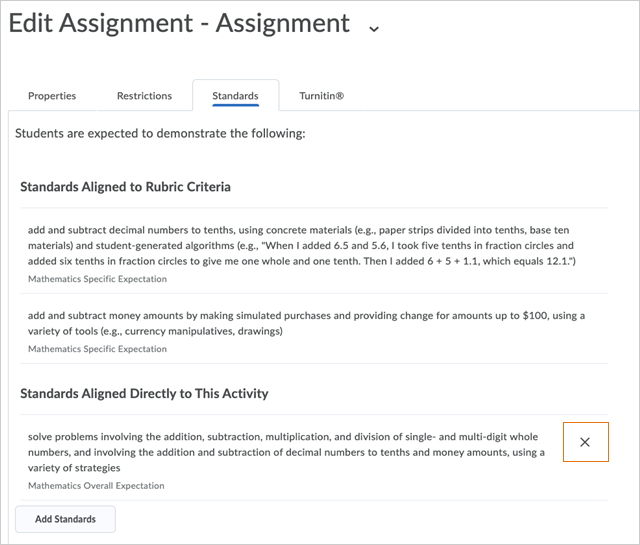
Figure: The standards aligned to rubric criteria are listed in the Standards tab.